
Taurus Setup Guide
Get up and running with Taurus in minutes. This guide walks you through creating your Polymarket account, getting your API keys, installing the Taurus Chrome extension, and placing your first trade.
TLDR
- Download the Polymarket US app and create an account (use code
QUAKERSfor a free $10). - Complete identity verification.
- Go to polymarket.us/developer and create an API key — save your secret key immediately, it's shown only once.
- Install the Taurus Chrome extension and pin it.
- Browse a supported site (e.g. X/Twitter), find a post with a matched market widget, and place your first trade.
What is Taurus?
Taurus brings prediction markets into your browsing flow so you can see odds and act on them without constantly leaving the page. It runs as a Chrome extension with a side panel (sidecar) for your portfolio, markets, and more.
Step 1: Download the Polymarket App & Create an Account
- Download the Polymarket US app and create an account.
- Use our exclusive code
QUAKERSfor a free $10 to start trading.
Step 2: Complete Identity Verification
Before you can trade or access the API, you'll need to verify your identity. Once approved, you'll see a confirmation screen like this:
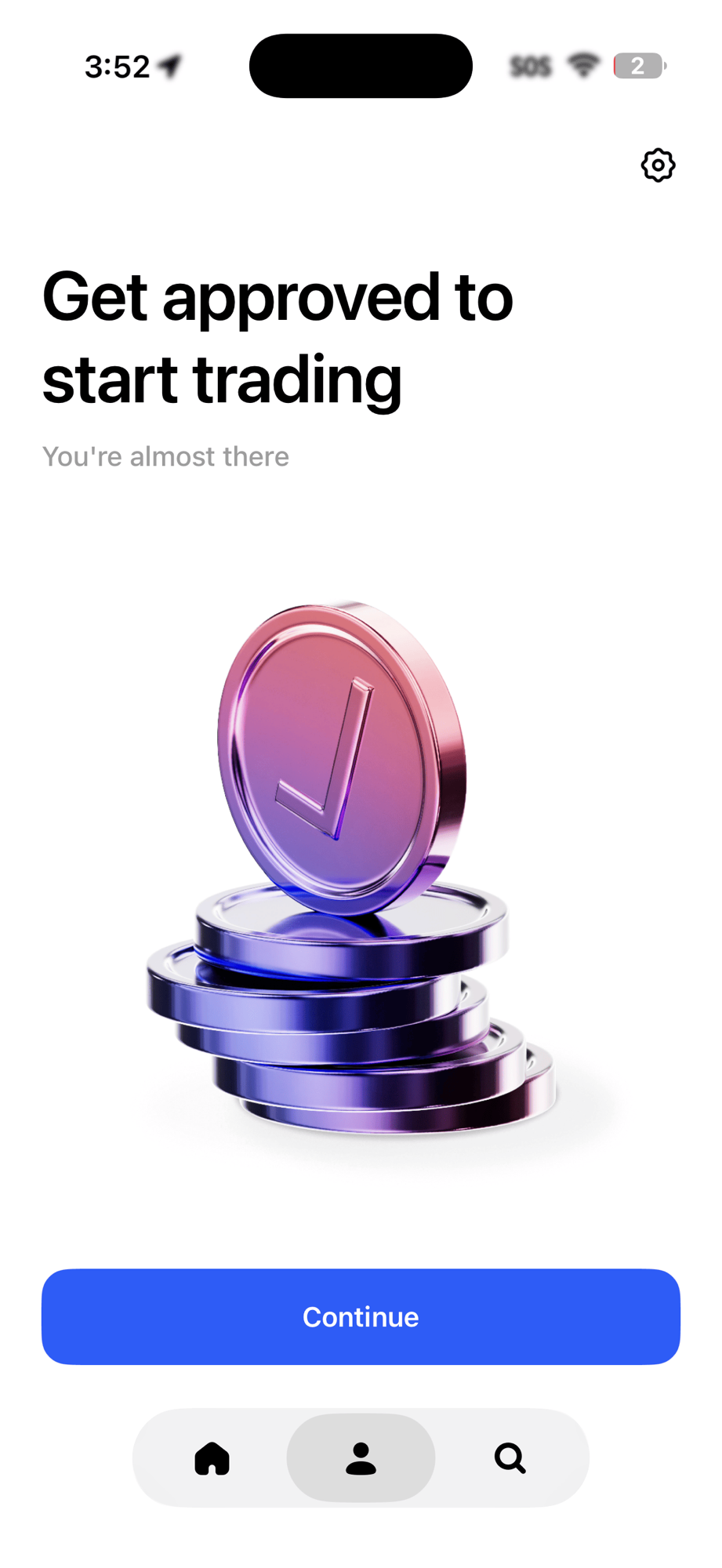
Tap Continue to proceed.
Step 3: Go to the Developer Portal
Visit polymarket.us/developer and sign in with the same method you used in the app (Apple, Google, or email).
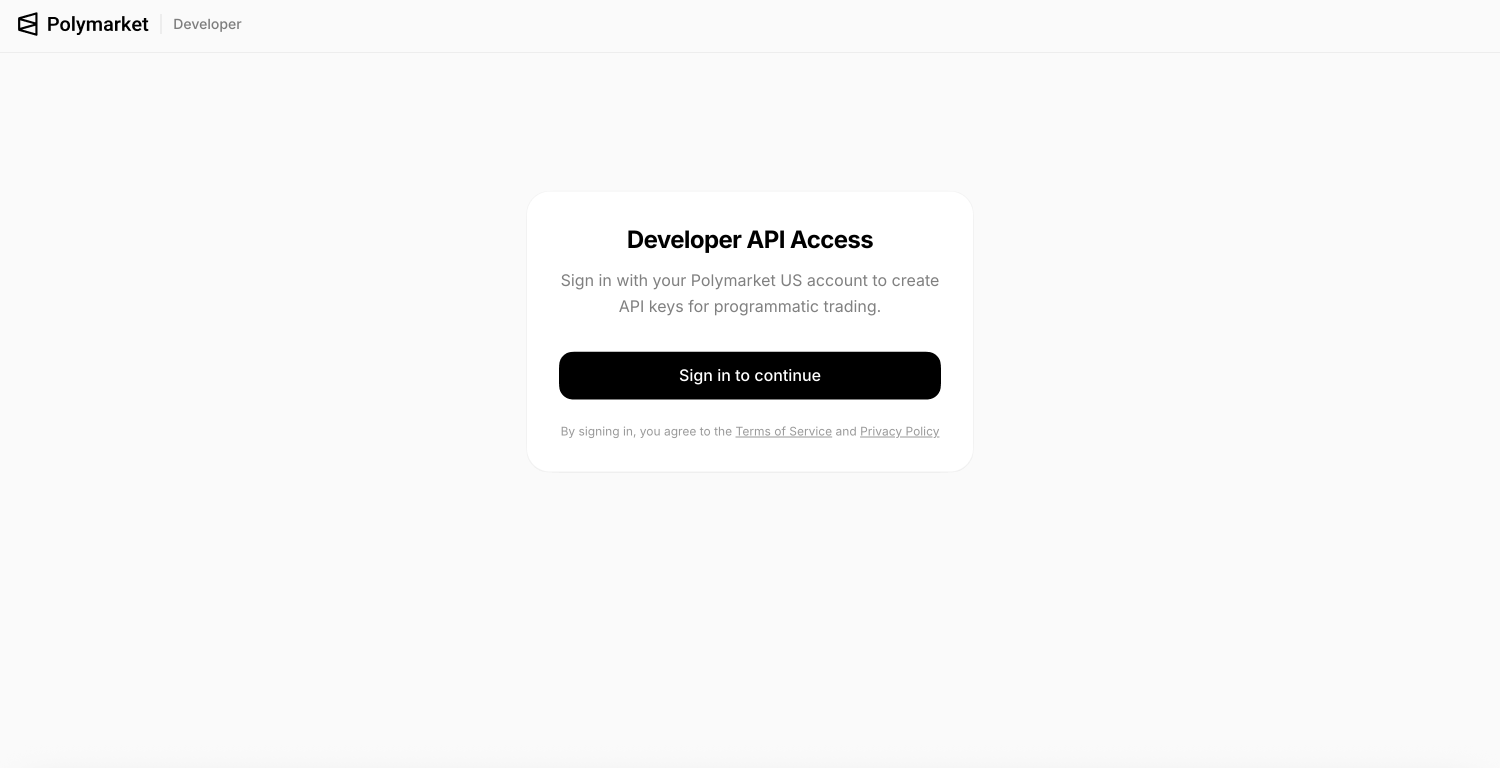
Click Sign in to continue to access the developer dashboard.
Step 4: Create Your API Key
Once signed in, click to create a new API key. You'll receive a Key ID and a Secret Key.
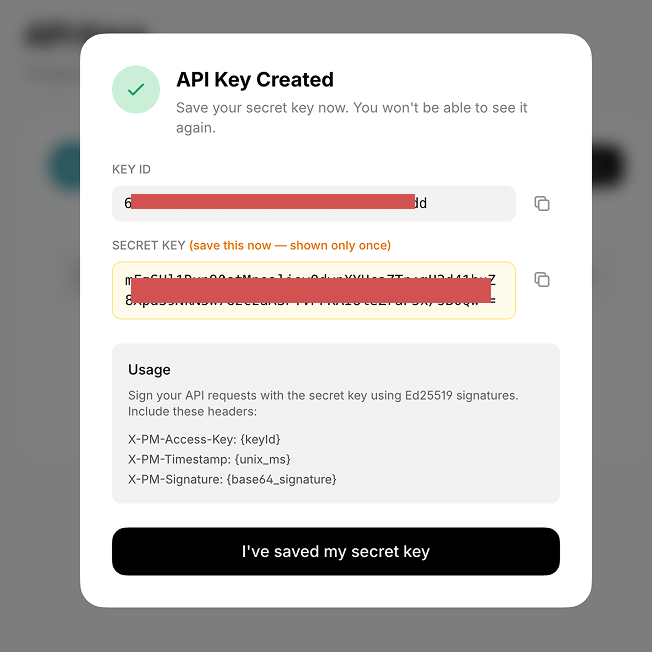
Save your keys immediately
Your Secret Key is shown only once. Copy both the Key ID and Secret Key and store them in a secure place (e.g. a password manager). We do not store these keys anywhere — they exist solely to connect to your account. If you lose your secret key, you will need to generate a new one.
Your API requests are signed using Ed25519 signatures with the following headers:
| Header | Value |
|---|---|
X-PM-Access-Key | Your Key ID |
X-PM-Timestamp | Unix timestamp (ms) |
X-PM-Signature | Base64-encoded signature |
Step 5: Install the Taurus Chrome Extension
- Install the Taurus extension from the Chrome Web Store (or your team's install link).
- Pin the extension so the side panel is easy to open.
- Open a supported site (e.g. X/Twitter) where Taurus can detect content and match it to prediction markets.
How Taurus Works
In the Feed (Inline Widgets)
As you scroll, Taurus detects posts that relate to tradable events. When a match exists, you'll see a compact market widget showing the question, current odds, and action buttons. You can open a trade flow directly from that widget.
Side Panel / Sidecar
Click the Taurus extension icon to open the side panel. Use it for:
- Portfolio — view your current positions and P&L
- Trending markets — discover what's moving
- Insights — analytics and market data
- Any tool that needs more space than an inline card
Placing a Trade
- Find a post with a matched market (a widget will appear on the post).
- Choose your outcome — Yes / No (or the outcomes shown in your UI).
- Enter your amount and confirm.
- Approve wallet prompts — network switch, typed-data signatures, etc. as needed.
- Confirm success in the UI and check your positions in the side panel.
Trading Modes
- Guest / Paper Trading (if enabled): Practice or explore without full funding setup.
- Live Trading: Connect a wallet (e.g. MetaMask), ensure you're on the correct network, and fund your Polymarket balance.
After You Trade
- Positions and P&L update in the side panel (timing depends on the venue API).
- If you use automation / auto-exit (when available), configure rules in the side panel and watch for notifications from the extension.
Settings & Safety
- Wallet: Only connect wallets you control. Always verify the network and site before signing any transaction.
- Permissions: The extension only runs on sites you allow. Review Chrome extension permissions for Taurus in
chrome://extensions. - Funds: If a trade doesn't appear as a position, it's often due to balance, allowance, wrong account, or venue delay. Check the side panel and try again after a short wait.
Need Help?
If you need help getting set up or need an invite code, email support@polymarket.us.